
Faculty and staff accounts are created as part of the on-boarding process for new employees. During the check-in with HR, you will be asked for a personal email address. HR will send an electronic form to your supervisor, who will process your network check in. Once completed, your MAVzone account will be created. This account will provide access to network resources, secure web sites, and software applications. You will receive an email, “CMU MAVzone Account”, at the personal email address you provided HR. This email will include your username, CMU email address, and an initial password. Please contact your supervisor if you don’t receive this “CMU MAVzone Account” email.
You’ll be prompted to change your password the first time you log in, and every six months after that. Passwords must be a minimum of 8 characters, contain at least one uppercase/lowercase letter, and one number. You may also use special characters. You may not reuse a previous password.
Following a password change, be sure to update all devices that connect to the CMU Wi-Fi immediately. These devices will persistently try to connect with the old password, which will quickly lock your account. If you synchronize your CMU email to a personal device, update your password in the email application as well.
To easily reset your MAVzone login password, use the Can't access your account? option on the
Sign in screen as described in the following steps:
- From any Internet connected device, go to www.coloradomesa.edu.
- Click the MAVzone button.

- At the Sign in screen, click the Can't access your account? link.
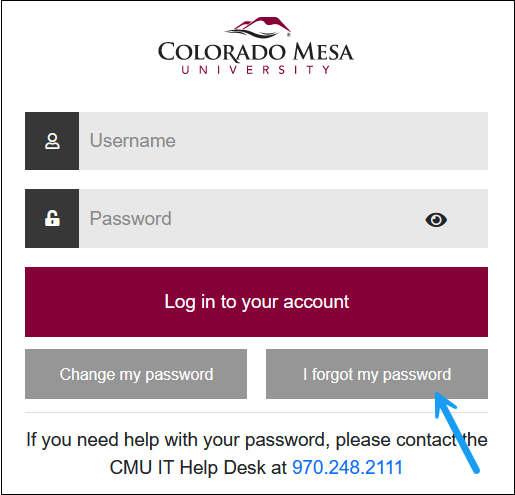
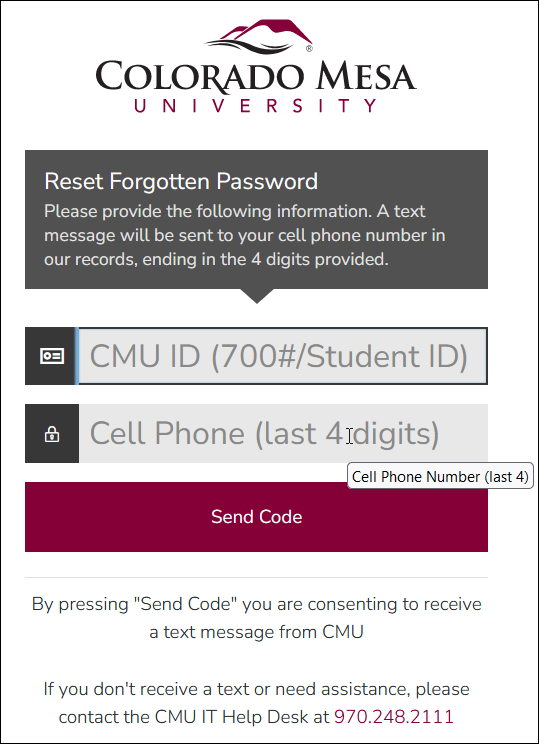
- Next, enter your CMU ID (700#/Student ID), and the last 4 digits of your cell phone on record. Click the Send Code button.
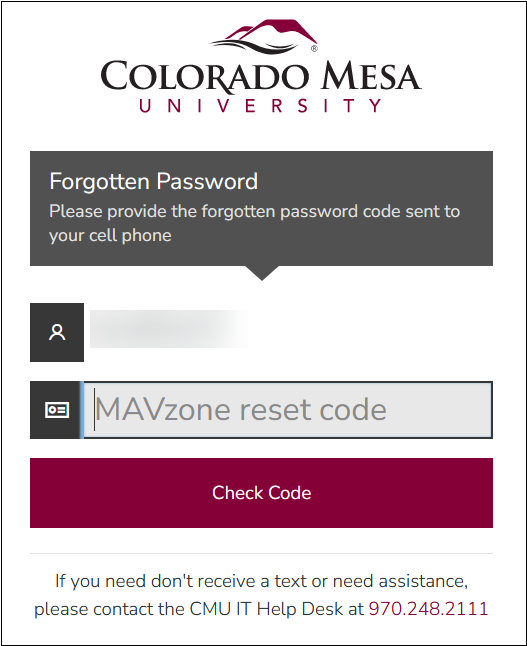
- In the next dialog box, your username will appear. Enter the MAVzone Reset Code you were just texted and click the Check Code button.
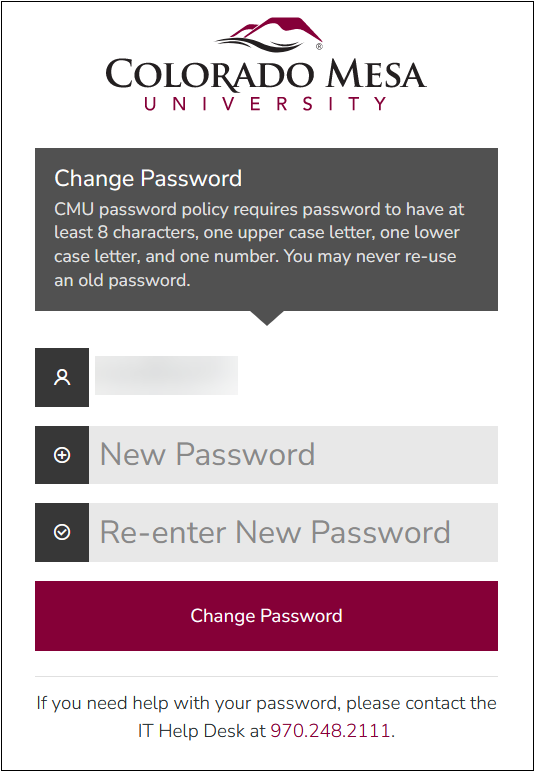
- In the next dialog box, enter your new password into each box, following the password policy described in this dialog. Click the Change Password button.
- Once the password has been changed, you will see the following dialog box:
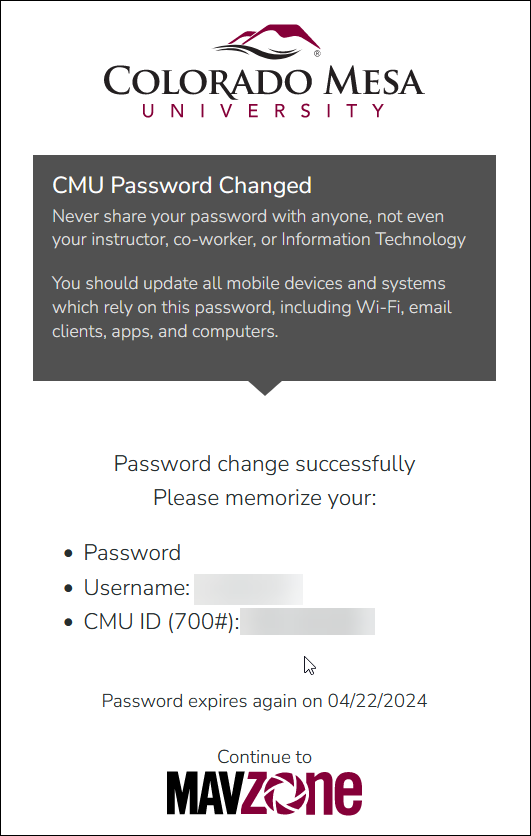
- Take a moment to note your Username and your CMU IT (700#). Memorize these two pieces of information to make future password resets easier.
- Be sure to update all devices that connect to the CMU WiFi immediately following a password change. These devices will persistently try to connect, with the old password, and will quickly lock your account. If you synchronize your CMU email to a personal device, update the password in the email application as well.
Faculty/Staff password resets ARE NOT done via phone call. If you need assistance with resetting your password, you must come to the Technology Help desk, located on the 1st floor of Tomlinson Library. Make sure to bring your MAVcard ID, and have your 700# memorized.
Change in MAVzone
You can change your MAVzone login password any time you like from within MAVzone. Once you are logged into MAVzone, follow these steps:
- In the Navigation Bar on the left side of the window, click the MY ACCOUNT button.
- Next, click Personal to expand that section.
- Find the Password Expires setting and to the right click the CHANGE button.
- Follow the prompts and click the Change button to confirm.
Be sure to update all devices that connect to the CMU WiFi immediately following a password change. These devices will persistently try to connect, with the old password, and will quickly lock your account. If you synchronize your CMU email to a mobile device, be sure to update the password in the email application as well.
Never divulge your password and do not write it down. Never leave your office computer logged in while you are away. Either log out or lock the computer by pressing WinLogo Key+L on Windows computers. For Apple computers press Command+Control+Q. Do not let people use a campus computer while you are logged on. This is especially important in classrooms and computer labs. Be sure to log off when leaving these public spaces.